
How to Export Your ReadCube Library With and Without PDFs
1 min read
If you’re looking to move your library (PDFs only or PDFs with metadata) out of ReadCube, we offer several different options as long as your company has made it available.
To export only the metadata of your library on the application, click on the cog icon next to the library you wish to export and mouse over the “Export to” tab to see the available export options:
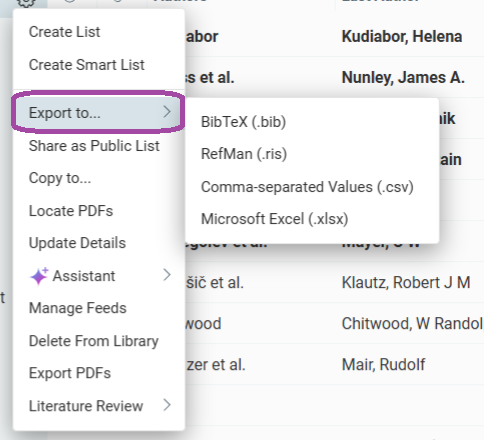
There, you’ll see the option to export the contents of your library as a .bib, .ris, or .csv file, or as a .xlsx export.
To export your PDFs out of ReadCube, head once again to the web application, click on the cog icon next to the library in question and select the “Export PDFs” option.
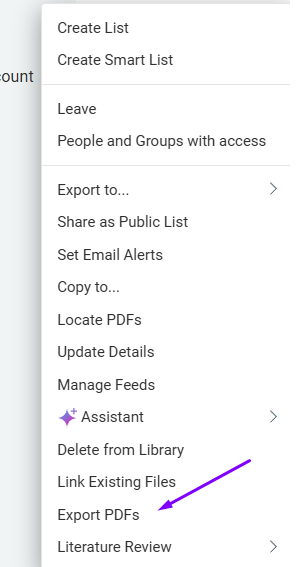
After you will have the option to select the naming scheme of the files that are being downloaded and once you have selected your desired scheme it will send a link of the PDFs to your email.
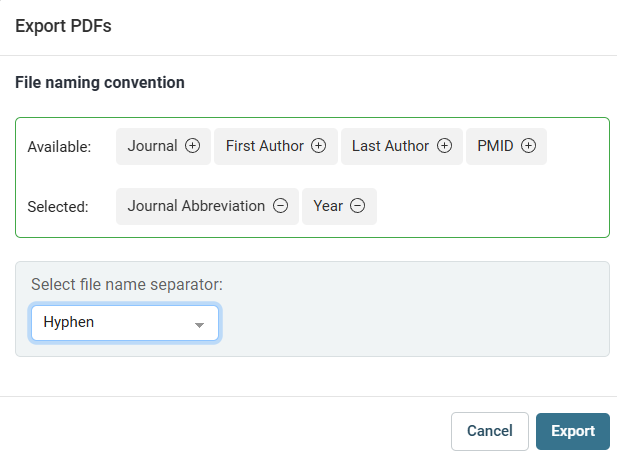
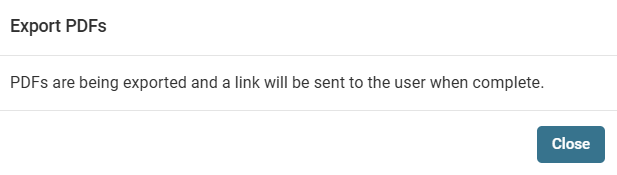
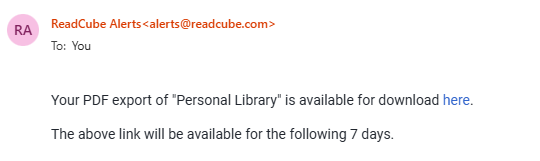
Upon clicking “export”, your PDFs will be exported and a link will be sent to your email address (the one you have registered with ReadCube) from “alerts@readcube.com” where you can click to download your content.
Note: Depending on the size of your library, it may take several minutes to several hours for your download link to arrive. If it’s been 24-hours, please contact ReadCube Support.


