
Auto Deposit Search into Library
2 min read
With ReadCube auto deposit search to library feature, ReadCube users can effortlessly link saved search terms to the library of their choosing, allowing the ReadCube app to automatically import new content into your library.
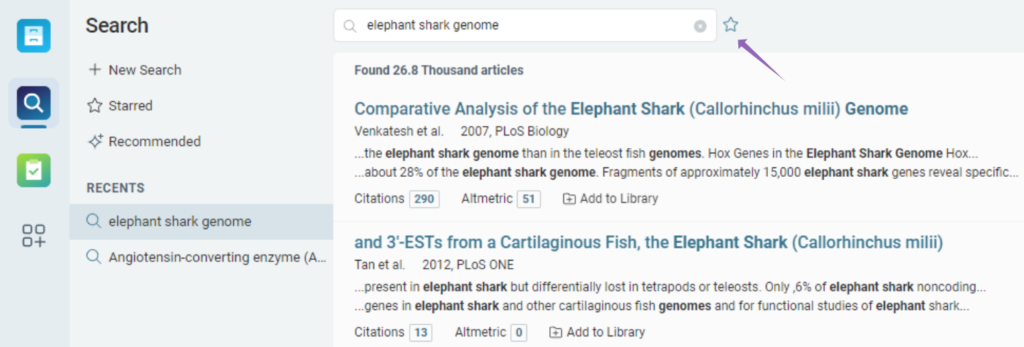
To use this feature, first you’ll want to create some saved searches. To do this, head into Search within the app, type in your query, and then click the “star” icon that will appear at the top of your search results
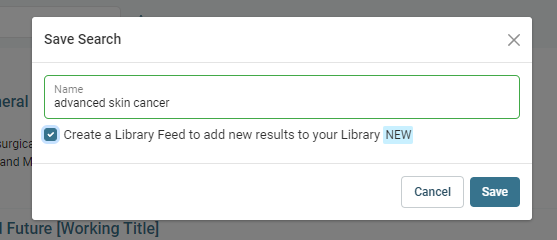
Once you click to “favorite” your search, a menu will pop up asking if you’d like “to create a Library Feed to add new results to your Library”. You’ll want to check that box and hit “save”
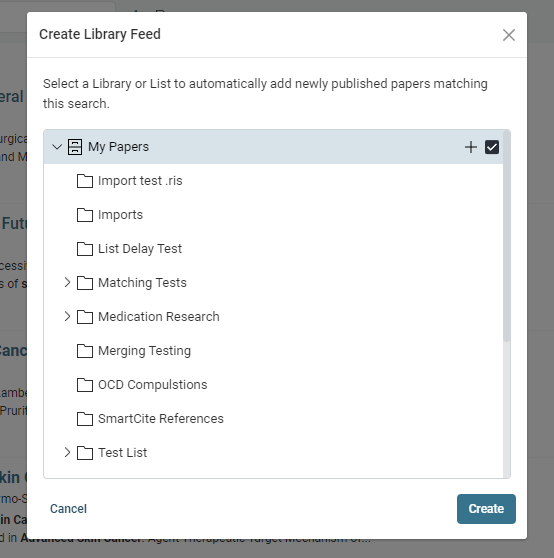
Then you will be asked to what Library or List do you wish to save the feed
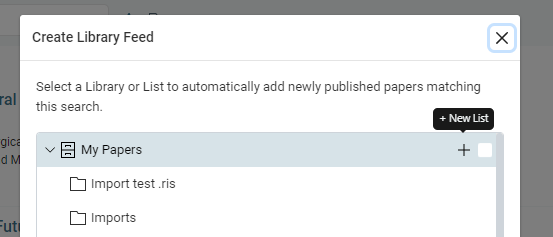
You can also opt to create a brand new List for this feed to live in
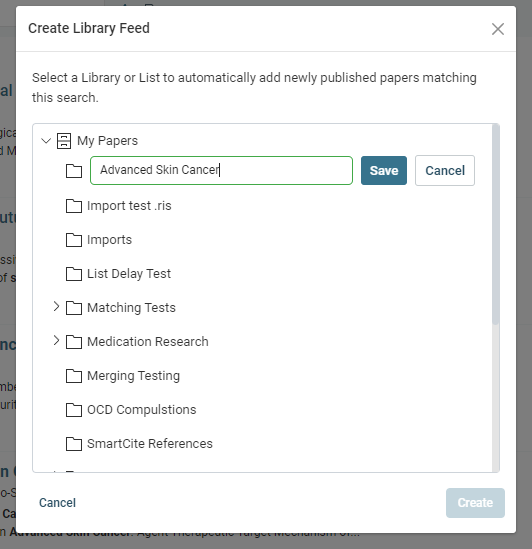
That search term will now be linked to that Library or List of your choosing and the ReadCube app will monitor those search terms daily, depositing new content directly into your Library or List.
Note: following the steps above will save your search to your library, but those results may not appear for up to 24-hours as that is how often ReadCube checks for new content available. To auto deposit your search into your library and immediately bring in the current results, please do the following:
Step 1: Deposit Initial Results
- Head into Search within the app and type in your query.
- Once the results populate, select the references you want to add to your library.
- Tip: you can select a range of articles or all articles via the menu on the bottom left
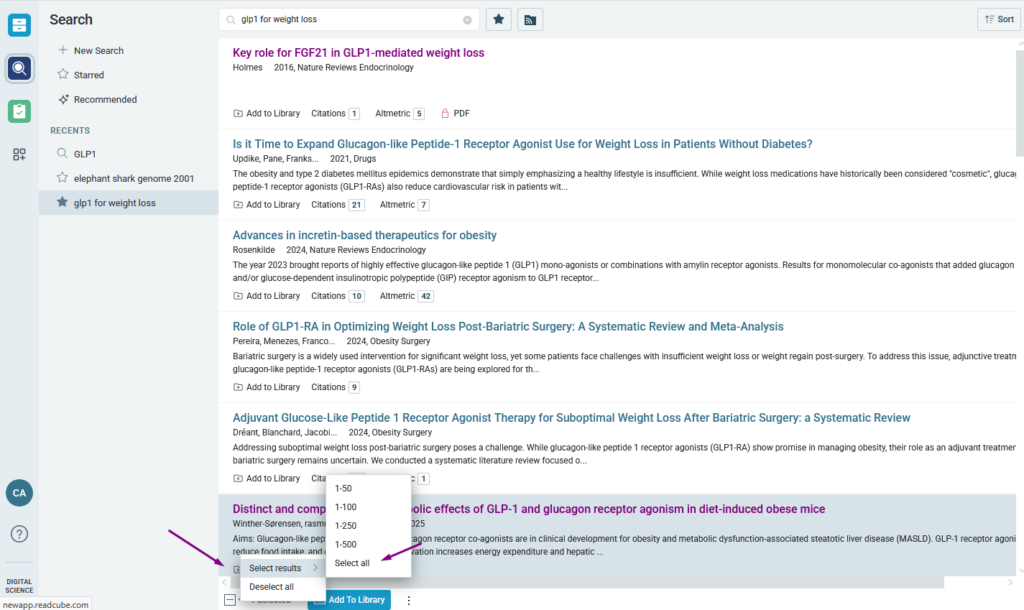
- Click the blue Add to Library button at the bottom of the screen to import these initial references immediately.
Step 2: Save the Search and Create the Feed
Now that your initial results are saved, ReadCube will automate the process for all future publications.


