
How to export library from the ReadCube (web and desktop)
1 min read
To export a single PDF file from the application, navigate to the reference in question, right-click on it and select “Download File”:
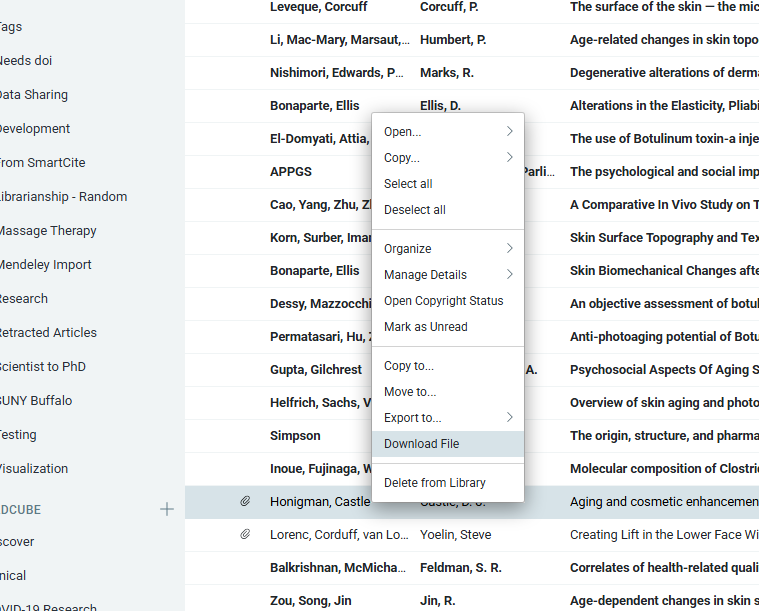
You will then receive a prompt asking you to confirm your download location and the download will begin.
To export PDFs of your entire Library or List, navigate to the Settings of the Library or List in question by clicking on the cog icon and select “Export PDFs”.
Please note: if the option “Export PDFs” is greyed out, it has not been enabled by your organization. For details, please reach out to your administrator.
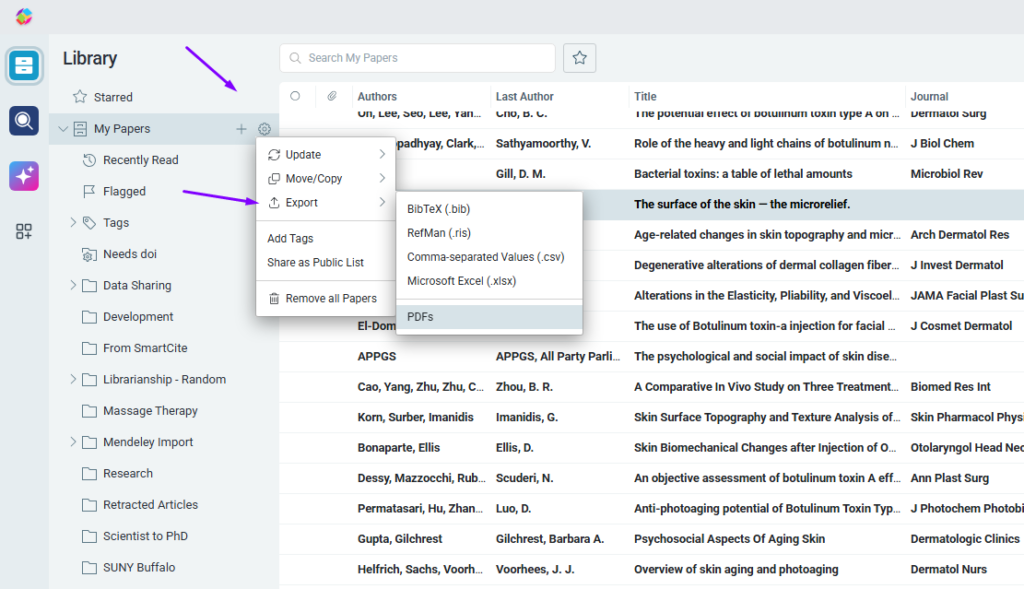
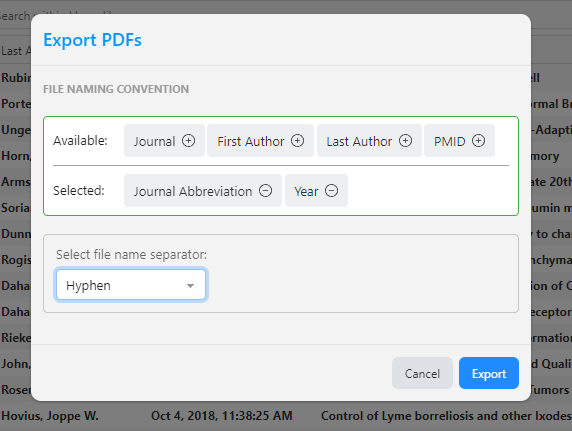
You’ll then see a window pop up asking you to set your file naming convention for the downloads:
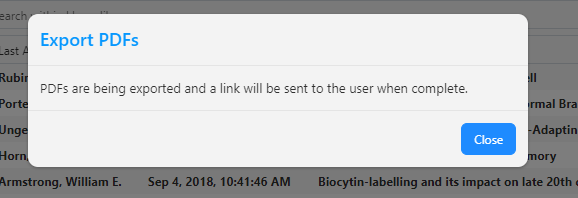
Once you have made you selection, a popup will appear informing you that those PDFs are being exporting and that an e-mail with a link will soon be sent to the e-mail address you have on file with ReadCube.
(Note: If you are unsure what e-mail address this is, click the Profile icon on the bottom left of the app)
In a few minutes (time will vary depending on the number and size of the files), you will receive an e-mail from ReadCube Alerts at alerts@readcube.com with a message stating: “your PDF export is available for download here”. Clicking “here” will start the download.


